Want to dive into machine learning but have no idea what hardware to buy?
You’re not alone.
Building a rig with the right artificial intelligence equipment for beginners can feel overwhelming.
Here’s the problem with most advice out there:
Everyone tells you to buy a $2,000 graphics card just to create basic projects and use simple enterprise tools.
But you probably don’t need it.
Think about it:
If you’re just learning the ropes, you can run powerful AI models on mid-tier technology with free, user-friendly software that offers practical support for your learning journey.
Let’s dive right in.
Minimum vs Maximum Artificial Intelligence Equipment for Beginners
Before you start shopping, you need to understand the realistic hardware bounds for local machine learning.
If you just want to run small Large Language Models (LLMs) or basic image generation, you only need to hit the minimum requirements.
If you want to train models, run complex local coding agents, or handle multi-file reasoning, you should aim for the maximum recommended beginner setup to boost your career and digital skills.
Here is the exact breakdown of the minimum and maximum artificial intelligence equipment for beginners:
| Component | Minimum Viable AI Setup | Maximum “Sweet Spot” Beginner Setup |
| GPU (Graphics Card) | 8GB VRAM (e.g., RTX 4060 or used RTX 3060) | 16GB – 24GB VRAM (e.g., RTX 4070 Ti Super, 4090) |
| System RAM | 16GB DDR4/DDR5 | 32GB – 64GB DDR5 |
| Processor (CPU) | 4 to 6-core (e.g., Ryzen 5 5600 or Intel i5) | 8-core (e.g., Ryzen 7 7800X3D or 9800X3D) |
| Storage | 500GB NVMe SSD | 1TB to 2TB NVMe Gen 4 SSD |
| Best For | 3B to 8B models (basic chat, communication, Q&A) | 14B to 32B models (local writing code, fast image gen) |
Note for Mac Users: A base Apple Silicon M2 or M3 Mac with 16GB of unified memory is a fantastic minimum-tier alternative to a dedicated Windows PC to support your work.
Essential AI Software for Beginners
Hardware is useless without the right software stack.
If you want to run AI locally, you don’t need to be a command-line wizard anymore to process information.
Here is the essential software you need to get started:
- NVIDIA CUDA Toolkit:
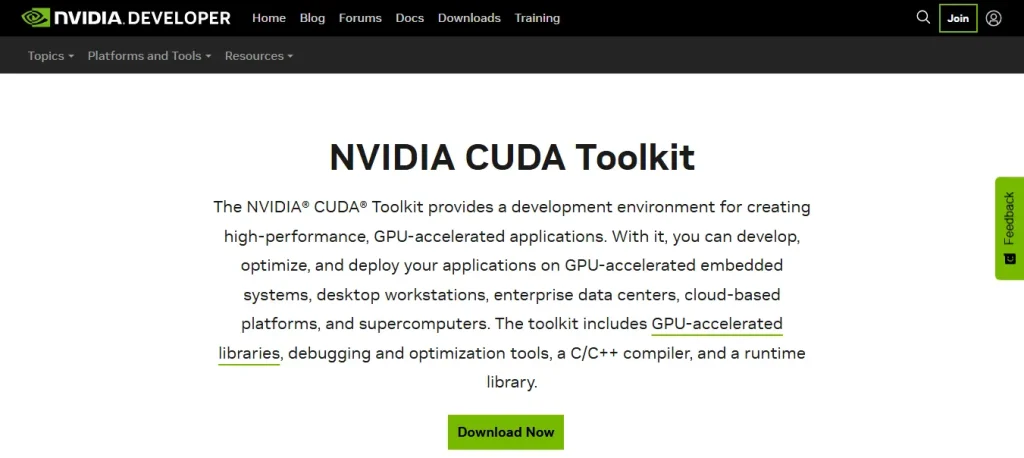
The foundational software that allows your PC to use your GPU for machine learning calculations.
- Python:
The programming language that powers 99% of modern AI.
- LM Studio or Ollama:
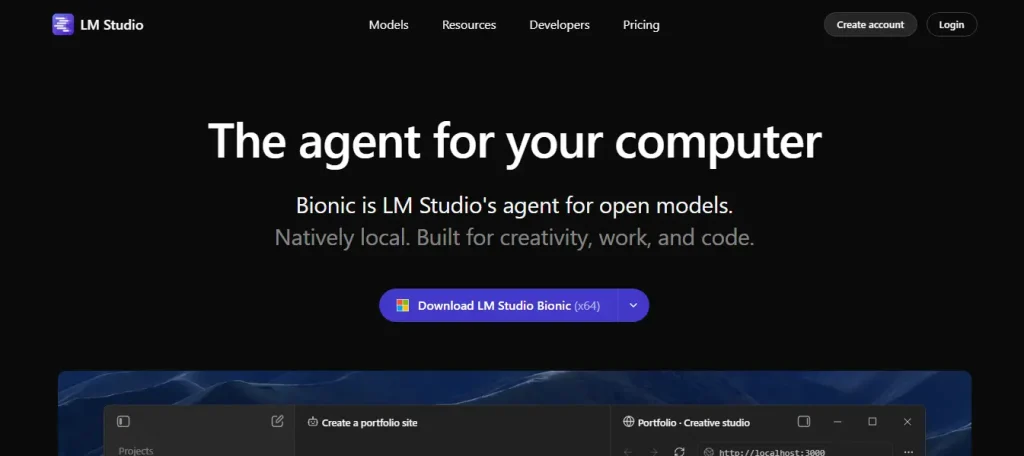
Free desktop applications that let you download and chat with open-source AI models entirely offline, helping you take notes and learn faster.
- Anaconda:
A package manager that keeps your Python coding environments clean and organized.
Rule of Thumb: Stick to all-in-one GUI tools first.
Before writing complex Python scripts, test your hardware using visual software like LM Studio.
For a deeper dive into the broader software landscape, check out our complete guide to AI software and tools.
Step-by-Step Guide: How to Run Your AI
Ready to fire up your new workstation?
Follow this simple blueprint to get your AI hardware running in under an hour.
Step 1: Install and Update Hardware Drivers
First, ensure your graphics card is properly seated in your motherboard. Head to the official NVIDIA website and download the latest “Studio Drivers” for your specific GPU. Studio drivers are more stable for AI workloads than standard gaming drivers.
Step 2: Install Your AI Interface
Navigate to LMStudio.ai and download the installer for Windows or Mac. This tool acts like a local version of ChatGPT, running entirely on your own equipment. It automatically detects your hardware and optimizes the settings for users.
Step 3: Download a Beginner-Friendly Model
Open LM Studio and use the search bar to find a model tailored to your hardware. If you have the minimum setup, search for a 4B to 8B model like “Llama 3.2 8B”. If you have the maximum setup, search for a 14B or 32B model. Look for a “Q4_K_M” (4-bit quantized) version, which is compressed perfectly for entry-level GPUs. Click download and wait for the file to save to your NVMe SSD.
Step 4: Load the Model into VRAM and Chat
Select the model from the dropdown menu and click “Load”. Watch your GPU memory usage spike—this means the model is successfully loaded into your VRAM. Type your first prompt and watch your local artificial intelligence equipment generate answers in real time!
If you want to explore other applications after setting this up, explore our curated list of the top AI tools for beginners to improve your overall hardware literacy.
Ready to Master Your AI Setup?
Upgrading your hardware is just the first step to mastering machine learning.
Now it is time to figure out which applications fit your specific workflow as people scale their operations.
To figure out your next move, learn how to choose the best AI tool for your specific career goals.
If you need help, feel free to visit our contact page.
Frequently Asked Questions
What software do I need to run AI on my PC?
Beginners should start with LM Studio or Ollama for running text models, and Automatic1111 for generating images. You will also need your GPU manufacturer’s latest drivers and the CUDA Toolkit if using NVIDIA.
Do I need to know how to code to use AI equipment?
No. While learning Python is highly recommended for advanced machine learning, beginners can use graphical user interfaces (GUIs) like LM Studio to run AI locally without writing a single line of code.
How much VRAM do I need for AI?
For a minimum beginner setup, 8GB of VRAM is the bare minimum to run small 8B parameter models. However, a maximum beginner setup of 16GB to 24GB is highly recommended for running more advanced 14B to 32B models locally.
Is Mac or PC better for AI beginners?
PCs with dedicated NVIDIA GPUs offer the most flexibility and compatibility with AI software. However, Apple Silicon Macs (M2/M3 with 16GB+ unified memory) are excellent, energy-efficient alternatives for running local models.
Can I run AI on my existing gaming PC?
Yes! If your gaming PC has a modern NVIDIA RTX graphics card (like an RTX 3060 or better) and at least 16GB of system RAM, it is already capable of running entry-level AI models.